
Anúncios
Dealing with computer hardware issues can be frustrating, but having a systematic troubleshooting approach makes problem-solving much faster and more efficient.
🔧 Why Hardware Problems Happen More Often Than You Think
Hardware failures aren’t just random occurrences. They’re often the result of environmental factors, wear and tear, or improper maintenance. Understanding why these issues arise helps you prevent future problems and respond quickly when something goes wrong. Modern computers contain numerous interconnected components, and when one element malfunctions, it can create a domino effect throughout your entire system.
Anúncios
The good news is that most hardware problems follow predictable patterns. By learning to recognize common symptoms and applying systematic troubleshooting techniques, you can resolve many issues without expensive repairs or professional help. This comprehensive checklist will guide you through identifying and fixing the most frequent hardware hassles that plague computer users worldwide.
🖥️ Starting With The Basics: Power and Connection Issues
Before diving into complex diagnostics, always check the fundamentals first. Power-related problems account for a surprising percentage of reported hardware failures, yet they’re often the simplest to fix. When your computer won’t turn on or behaves erratically, start with these essential checks.
Anúncios
Verify All Power Connections
Loose cables cause more problems than most people realize. Check that your power cord is firmly seated in both the wall outlet and your computer. For desktop systems, ensure the power supply switch on the back of the case is in the “on” position. This seemingly obvious step is frequently overlooked, especially after moving equipment or cleaning.
Test your power outlet by plugging in another device. Sometimes the problem isn’t your computer at all, but rather a tripped circuit breaker or faulty outlet. If you’re using a power strip or surge protector, make sure it’s functioning properly and hasn’t reached its protection capacity.
Internal Connection Checkpoints
For those comfortable opening their computer case, reseating internal components can resolve mysterious issues. Power cables to the motherboard, graphics card, and storage drives can work loose over time, especially in systems that experience frequent movement or vibration.
Always disconnect power completely before opening your computer case. Wait at least 30 seconds for capacitors to discharge, then carefully check that all internal power connectors are properly secured. Pay special attention to the 24-pin motherboard connector and the 4-pin or 8-pin CPU power connector.
💾 Memory and Storage Diagnostic Strategies
RAM and storage drive failures manifest in various ways, from random crashes to complete system instability. These components are critical for system performance and reliability, making them priority items in any troubleshooting checklist.
Identifying RAM Problems
Random freezes, blue screens, and unexpected reboots often point to faulty memory modules. If your system displays memory error messages during startup or experiences crashes during memory-intensive tasks, RAM is likely the culprit. Modern operating systems include built-in memory diagnostic tools that can identify problematic modules.
Windows users can access the Memory Diagnostic tool by typing “Windows Memory Diagnostic” in the search bar. This utility runs comprehensive tests during system restart, checking for errors in your RAM modules. For more thorough testing, third-party tools like MemTest86 provide extensive memory analysis.
Storage Drive Troubleshooting
Hard drives and solid-state drives eventually fail, but they usually show warning signs before complete failure. Unusual clicking sounds, extremely slow performance, frequent file corruption, or the dreaded “disk not found” error indicate storage problems requiring immediate attention.
Check your drive health using built-in tools or specialized software. Windows includes CHKDSK for error checking, while SMART monitoring utilities can predict drive failures before they happen. If diagnostic tools report problems, backup your data immediately and prepare to replace the drive.
🎮 Graphics Card and Display Troubleshooting
Visual problems ranging from no display at all to artifacts and screen flickering often stem from graphics-related hardware issues. These problems can originate from the graphics card itself, display cables, or monitor malfunctions.
No Display Signal Solutions
When your monitor receives no signal, systematic elimination helps identify the problem source. First, verify the monitor powers on correctly by checking for indicator lights. Try different video cables and ports, as damaged cables or faulty connections frequently cause display issues.
For systems with dedicated graphics cards, try connecting your display to the motherboard’s integrated graphics port instead. If you get a picture this way, your dedicated GPU may have failed or requires reseating. Remove the graphics card, clean the contacts, and firmly reinstall it in the PCIe slot.
Performance and Visual Artifacts
Screen artifacts, strange colors, or graphical glitches typically indicate overheating graphics cards or failing GPU memory. Monitor your graphics card temperature using diagnostic software. Most GPUs should stay below 80-85°C under load. If temperatures exceed these thresholds, clean dust from cooling fans and heat sinks.
Update your graphics drivers to the latest version, as outdated or corrupted drivers cause numerous display problems. Completely uninstall existing drivers using dedicated removal tools, then perform a clean installation of the newest drivers from the manufacturer’s website.
🌡️ Temperature Management and Cooling Systems
Overheating causes immediate performance problems and long-term hardware damage. Proper cooling system maintenance prevents many common hardware failures and extends component lifespan significantly.
Monitoring System Temperatures
Download temperature monitoring software to establish baseline readings for your system. CPU temperatures should typically stay below 70-80°C under normal loads, though exact thresholds vary by processor model. Sudden temperature spikes or consistently high readings indicate cooling system problems.
Check that all system fans are spinning properly. Non-functional case fans, CPU coolers, or GPU fans will quickly lead to overheating. Listen for unusual fan noises, which might indicate failing bearings or obstructions. Replace any fans that aren’t operating smoothly.
Dust Removal and Airflow Optimization
Accumulated dust is the enemy of proper cooling. Every few months, power down your system and use compressed air to remove dust buildup from fans, heat sinks, and ventilation areas. Pay special attention to the CPU cooler and graphics card, as these components generate the most heat.
Ensure your computer case has adequate airflow with unobstructed intake and exhaust paths. Cable management isn’t just aesthetic—properly routed cables improve airflow and reduce temperatures. Consider adding additional case fans if your system consistently runs hot.
🔌 Peripheral Device Problem Resolution
External devices like keyboards, mice, printers, and USB accessories occasionally malfunction or fail to connect properly. These issues are usually easier to diagnose than internal component failures but can be equally frustrating.
USB Connectivity Troubleshooting
USB devices that aren’t recognized or work intermittently often suffer from driver issues or faulty ports. Try connecting the problem device to different USB ports. If it works in some ports but not others, specific ports may be damaged or disabled in your system’s BIOS settings.
Update USB drivers through Device Manager and check for any devices showing error indicators. Sometimes Windows assigns too much power to connected devices, overwhelming the USB controller. Try unplugging unnecessary USB devices to see if this resolves connection problems.
Wireless Device Considerations
Bluetooth and wireless peripherals introduce additional troubleshooting variables. Check battery levels first, as low batteries cause erratic behavior. Remove the device from your system’s paired devices list, then reconnect it fresh. This process often resolves mysterious connection issues.
For wireless mice and keyboards, ensure the USB receiver isn’t blocked or too far from the device. Some wireless peripherals include software that needs updating to maintain compatibility with operating system updates.
🔊 Audio Hardware Diagnosis
Sound problems manifest as no audio output, distorted sound, or unrecognized audio devices. These issues stem from driver problems, incorrect configuration, or actual hardware failures in sound cards or speakers.
Audio Output Troubleshooting Steps
When you have no sound, check the obvious first: speaker power, volume levels, and cable connections. Right-click the volume icon in your system tray to access sound settings and verify the correct output device is selected. Sometimes systems default to HDMI audio or other unexpected outputs.
Run your operating system’s audio troubleshooter, which automatically detects and fixes common audio configuration problems. Update audio drivers from your motherboard or sound card manufacturer’s website. Generic Windows audio drivers work for basic functionality but often lack features and reliability.
Dealing With Audio Distortion
Crackling, popping, or distorted audio usually indicates driver conflicts, incorrect sample rate settings, or hardware interference. Access your audio device properties and try different sample rates and bit depths. Disable audio enhancements, which sometimes cause more problems than they solve.
Electrical interference from other components can affect audio quality. Ensure audio cables aren’t running parallel to power cables, and consider using shielded cables for sensitive connections. For internal sound cards, reseating the card or moving it to a different expansion slot may reduce interference.
⚡ Power Supply Unit Evaluation
The PSU is your computer’s foundation, converting AC power to the DC voltages your components need. PSU failures can damage other hardware, making proper diagnosis and timely replacement critical for system health.
Signs of PSU Problems
Random shutdowns, especially under heavy load, often indicate insufficient or failing power delivery. Strange odors, unusual noises from the PSU fan, or visible burn marks are emergency warning signs requiring immediate attention. Never continue using a computer with obvious PSU damage.
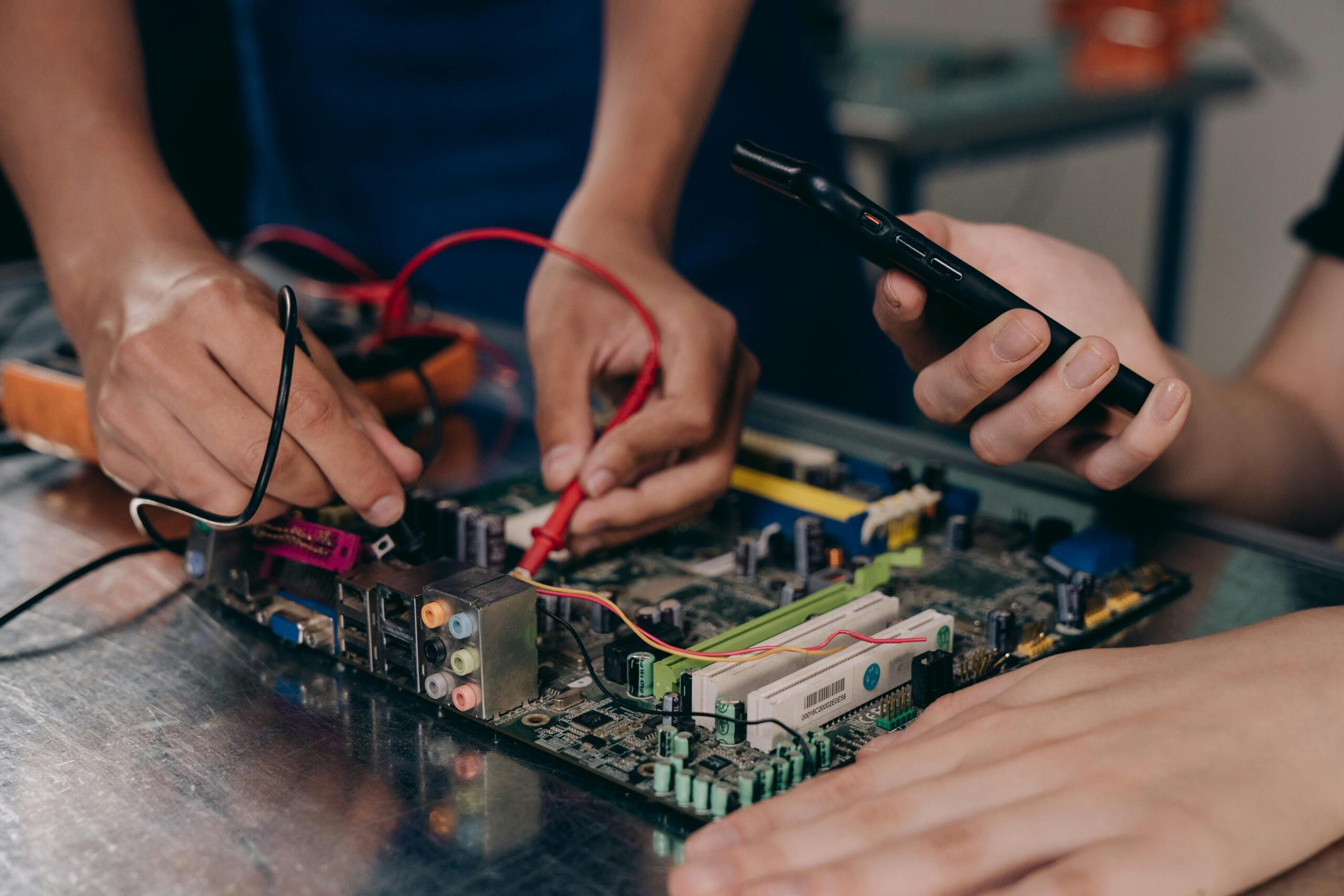
Use a multimeter to test PSU voltage outputs if you have the technical knowledge. The major rails should provide stable voltages: +12V, +5V, and +3.3V with minimal deviation. Significant voltage fluctuations indicate PSU failure. For most users, professional testing or PSU replacement is safer than attempting voltage measurements.
Calculating Power Requirements
Underpowered systems exhibit instability, especially when adding components. Calculate your system’s total power consumption using online PSU calculators. Include all components: CPU, GPU, drives, fans, and peripherals. Your PSU should provide at least 20-30% more capacity than your peak power draw for optimal efficiency and longevity.
🛠️ Creating Your Personal Troubleshooting Workflow
Developing a systematic approach to hardware problems saves time and prevents overlooking simple solutions. Start with the quickest, easiest checks before progressing to more complex diagnostics. Document your troubleshooting steps and results, which helps identify patterns and assists professionals if you need expert help.
Essential Troubleshooting Tools
Build a basic hardware troubleshooting toolkit containing compressed air, a screwdriver set, thermal paste, cable ties, and a flashlight. Software tools are equally important: keep diagnostic utilities, driver backup software, and system monitoring applications readily available.
Maintain a bootable USB drive with diagnostic tools and a fresh operating system installation. This invaluable resource helps determine whether problems are hardware or software-related and provides recovery options when systems won’t boot normally.
When to Seek Professional Help
Some hardware problems require professional expertise or specialized equipment. Complex motherboard repairs, laptop screen replacements, or data recovery from failed drives are often better left to experienced technicians. Know your limits and weigh the cost of professional service against the value of your time and risk of causing additional damage.
However, many hardware issues are entirely resolvable with patient, methodical troubleshooting. This comprehensive checklist provides the foundation for diagnosing and fixing common problems, empowering you to maintain your computer’s health and performance without unnecessary expense or downtime.
📝 Preventive Maintenance for Long-Term Reliability
Preventing hardware problems is more efficient than fixing them. Establish a regular maintenance schedule including cleaning, driver updates, and health monitoring. Keep your operating system updated, as patches often include hardware compatibility improvements and bug fixes.
Monitor your system’s health proactively using diagnostic software that tracks temperatures, voltages, and component status. Address warning signs immediately rather than waiting for complete failures. Regular backups protect your data against inevitable hardware failures, providing peace of mind and quick recovery options.
Environmental factors significantly impact hardware longevity. Keep computers in clean, temperature-controlled environments with adequate ventilation. Avoid placing systems on carpet or in enclosed spaces that restrict airflow. Use surge protectors to guard against power fluctuations that can damage sensitive components.
By following this comprehensive troubleshooting checklist and implementing preventive maintenance practices, you’ll minimize downtime, extend your hardware’s lifespan, and handle most common problems with confidence. Hardware hassles become manageable challenges rather than overwhelming crises when you approach them systematically with the right knowledge and tools. 🚀
